
Shortening a link on a desktop browser takes a few seconds. On an iPhone the same task is less obvious, because iOS does not hand you an obvious place to do it and most guides assume you are already sitting at a computer. The good news is that there are four workable approaches, and once set up the fastest of them takes about two seconds per link.
Which one suits you depends on whether you shorten links occasionally or constantly, and whether you need the short link to use your own domain.
Why It Feels Awkward on iOS
iOS is designed around sharing rather than editing. When you tap the share button, the system expects you to send the link somewhere, not modify it. There is no built in shorten function, and Safari extensions need to be enabled deliberately before they appear.
- The share sheet is destination focused. Anything that transforms the link has to be registered as an action or a shortcut.
- Extensions are hidden by default. Even after installing an app, you have to switch its extension on inside Safari before it shows up.
- Clipboard handling is inconsistent. Some tools copy the result automatically, others leave you to copy it yourself.
None of this is difficult, it is simply undiscoverable. Once configured, the process is fast.
Method One: Use a Short Link Service in Safari
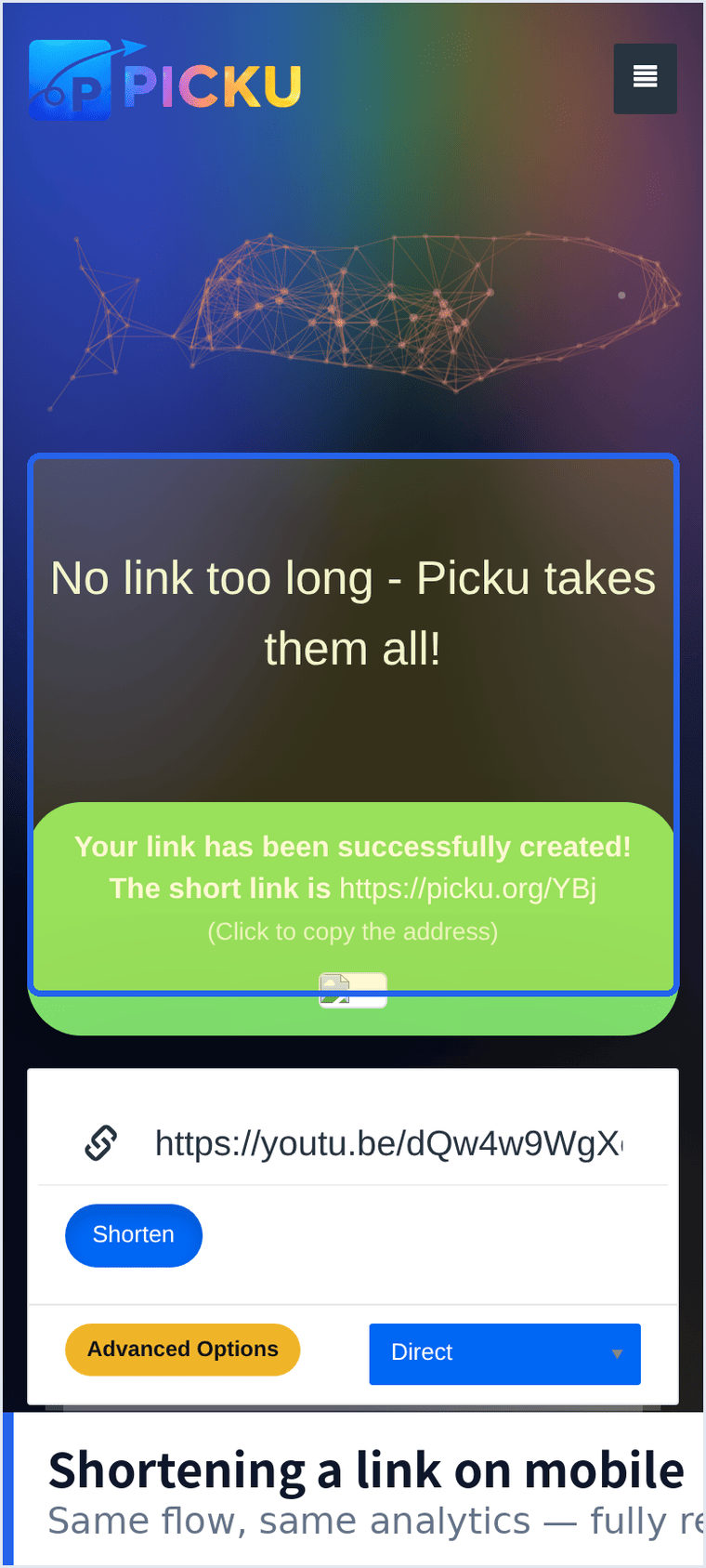
The simplest approach that requires no setup at all. Open the shortener in Safari, paste the long address, and copy the result.
- Open Safari and go to the shortener of your choice.
- Paste the long address into the input field. Long press and tap Paste.
- Tap the shorten button and wait for the result.
- Copy the short link using the copy button rather than selecting the text, which avoids grabbing stray spaces.
This works on any iPhone with no installation. It is the right choice if you shorten a link once a week or less.
Method Two: Build a Shortcut
If you shorten links regularly, a Shortcut removes almost all the friction. The Shortcuts app can take the current page or clipboard contents, send it to a shortener, and place the result back on your clipboard.
- Open the Shortcuts app and create a new shortcut.
- Add a Get Clipboard action as the input.
- Add a Get Contents of URL action, set it to POST, and point it at the shortener endpoint if one is available.
- Add a Copy to Clipboard action so the result is ready to paste.
- Enable Show in Share Sheet so the shortcut appears whenever you share a link.
After this, shortening a link is a matter of tapping share, choosing the shortcut, and pasting. The setup takes ten minutes and pays for itself quickly if you do this daily.
Method Three: Enable a Safari Extension
Several shortener apps ship Safari extensions. After installing, the extension has to be switched on manually.
- Install the app from the App Store.
- Open Settings, then Safari, then Extensions.
- Enable the extension and grant it permission for the sites you use.
- In Safari, tap the puzzle icon in the address bar to reach it.
The advantage is that the extension can act on the page you are currently viewing without any copying. The disadvantage is that another app sits between you and your links.
Method Four: Ask Siri
If you created a shortcut in method two, Siri can run it by name. This is useful when your hands are busy or you are reading a link aloud from another device.
Say the shortcut name, and the shortcut runs against the current clipboard. It sounds like a novelty but becomes genuinely convenient once the shortcut is reliable.
Custom Domains on Mobile
If your short links use your own domain, the setup is done once in a browser and then works identically on mobile. You connect the domain to the shortener through a DNS record, wait for the certificate to be issued, and from then on every link created on the phone uses that domain.
- Do the domain setup on a computer. Editing DNS records on a phone is possible but unpleasant.
- Confirm the certificate before relying on it. Open one short link on mobile data, not just on Wi-Fi.
- Remember that editing a destination later works the same way. You do not need the computer again after setup.
Problems People Hit
- The extension does not appear. Almost always because it was never enabled in Settings rather than a fault with the app.
- The copied link has a trailing space. Use the copy button instead of selecting text manually.
- The short link opens in an in app browser. This is controlled by the app you paste into, not by the shortener.
- Clipboard access prompts repeatedly. iOS asks for permission per paste; granting access when prompted reduces the interruptions.
- The link works on Wi-Fi but not mobile data. Usually a DNS change that has not finished propagating.
Picking One Method and Sticking With It
Having four options is only useful if you settle on one. Occasional users should stop at method one, since installing anything is more overhead than the task justifies. Anyone shortening links several times a day will recover the ten minutes of shortcut setup within a week, and gains the side benefit of consistency, because every link then goes through the same tool with the same domain. The trap is half configuring two methods and never being sure which one produced a given link, which is how short link collections become impossible to audit later.