
A short link on a shared domain works, but it builds recognition for someone else. Every link becomes an advertisement for the shortening service rather than for you. Connecting your own domain fixes that, and it is one of the few changes to a link setup that pays off immediately and keeps paying off.
The setup sounds more technical than it is. In most cases it comes down to adding one DNS record and waiting for a certificate to be issued.
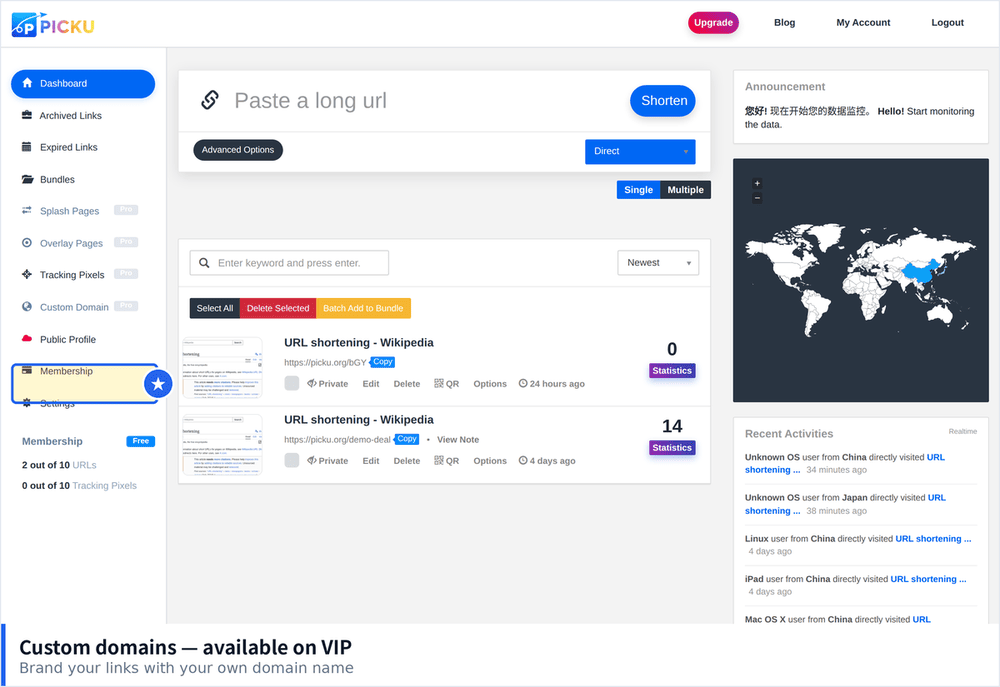
Why Bother With Your Own Domain
- Trust. People are more willing to tap a link when they recognise the domain, and messaging apps are less likely to treat it as suspicious.
- Brand recall. A short domain you own is a small but repeated impression of your name.
- Portability. If you ever change shortener, the domain moves with you and your existing links keep working.
- Ownership of the data. Links on your domain are unambiguously yours in analytics and in the eyes of recipients.
Choosing the Domain
The best short domains are short, pronounceable and easy to spell. Perfect ones are taken, so the practical goal is finding something close enough.
- Aim for under fifteen characters. Every extra character makes the link longer and harder to type.
- Avoid hyphens and digits. They are remembered wrong and transcribed wrong.
- Check it aloud. If someone cannot spell it back after hearing it once, keep looking.
- Consider an unusual extension. Many good short names remain available on less common endings, and they work fine for links.
- Check the history. An expired domain may carry a poor reputation that affects how platforms treat your links.
What the DNS Record Does
Your shortener will ask you to add a record pointing a subdomain at their servers. Usually this is a CNAME for something like a short subdomain, or occasionally an A record for the root domain.
- CNAME on a subdomain. The most common and the most flexible. Use this unless you are told otherwise.
- A record on the root. Needed if you want links with no subdomain at all, though not all registrars support it cleanly.
- Leave other records alone. Changing your mail records by accident is a far bigger problem than a delayed link setup.
Step by Step
- Register the domain at any registrar if you do not already own it.
- Add the domain in your shortener dashboard and note the exact record it asks for.
- Log in to your DNS provider and create that record, copying the target value character for character.
- Wait for propagation. Usually minutes, occasionally several hours.
- Trigger certificate issuance in the shortener, which is normally automatic once DNS resolves.
- Create one test link and open it. Confirm the padlock appears and the redirect works.
When It Does Not Work
- Certificate stuck pending. Almost always DNS that has not propagated yet. Wait rather than retrying repeatedly, since repeated failures can trigger rate limits.
- Works on Wi-Fi but not mobile data. Usually still propagating on some networks.
- Redirects to the wrong place. Check for a conflicting existing record on the same subdomain.
- Browser warning appears. The certificate did not cover the exact hostname, often because a wildcard was expected.
- Nothing happens at all. Verify the record type, since an A record where a CNAME is expected will silently fail.
Security and Housekeeping
- Enable HTTPS enforcement. A short domain without a valid certificate is worse than not having one.
- Set a renewal reminder. Domain expiry takes every link you have ever shared offline at the same moment.
- Use auto renewal for the domain. This is not the place to save attention.
- Limit who can edit DNS. An accidental change breaks every link at once.
- Keep a list of your short links. If you ever migrate, you will need to know what to recreate.
Moving an Existing Setup
If you already have links on a shared domain, you do not have to lose them. Create the custom domain, then recreate your highest traffic links on the new domain and update them wherever they are easiest to reach. Leave the old ones in place rather than deleting them, since links in old emails and documents will keep resolving for years.
How Long Activation Really Takes
Most setups complete within minutes, but the exceptions are common enough to plan around. Knowing the timeline prevents the usual panic of assuming something is broken.
- DNS propagation is usually under an hour. Occasionally it takes longer depending on the provider and the previous record time to live value.
- Certificate issuance follows DNS resolution. It cannot start until the record resolves, so it always adds a few minutes on top.
- Some networks lag behind others. A link can work on one connection and fail on another for an hour or two.
- If it has not worked after a few hours, check the record rather than waiting. Genuine propagation delays beyond that are rare.
- Avoid repeated retries. Certificate providers apply rate limits, and hammering them can lock you out for much longer than the original delay.
Testing Properly Before You Rely On It
Do not consider the setup finished when the dashboard says it is. Create links that use the paths people will actually encounter: one with a custom slug, one with an auto generated code, one with tracking parameters appended, and one with a QR code. Open each on a phone using mobile data rather than your office network, and check the certificate on every one. Then edit one destination and confirm the change takes effect. That last test is the important one, because the ability to redirect later is the main reason to own the domain in the first place.